Open a course from your home page or from Courses, then tap Start reading. If you have been here before it says Continue instead, and picks up where you stopped.
You get the course book itself, laid out to read on a phone.
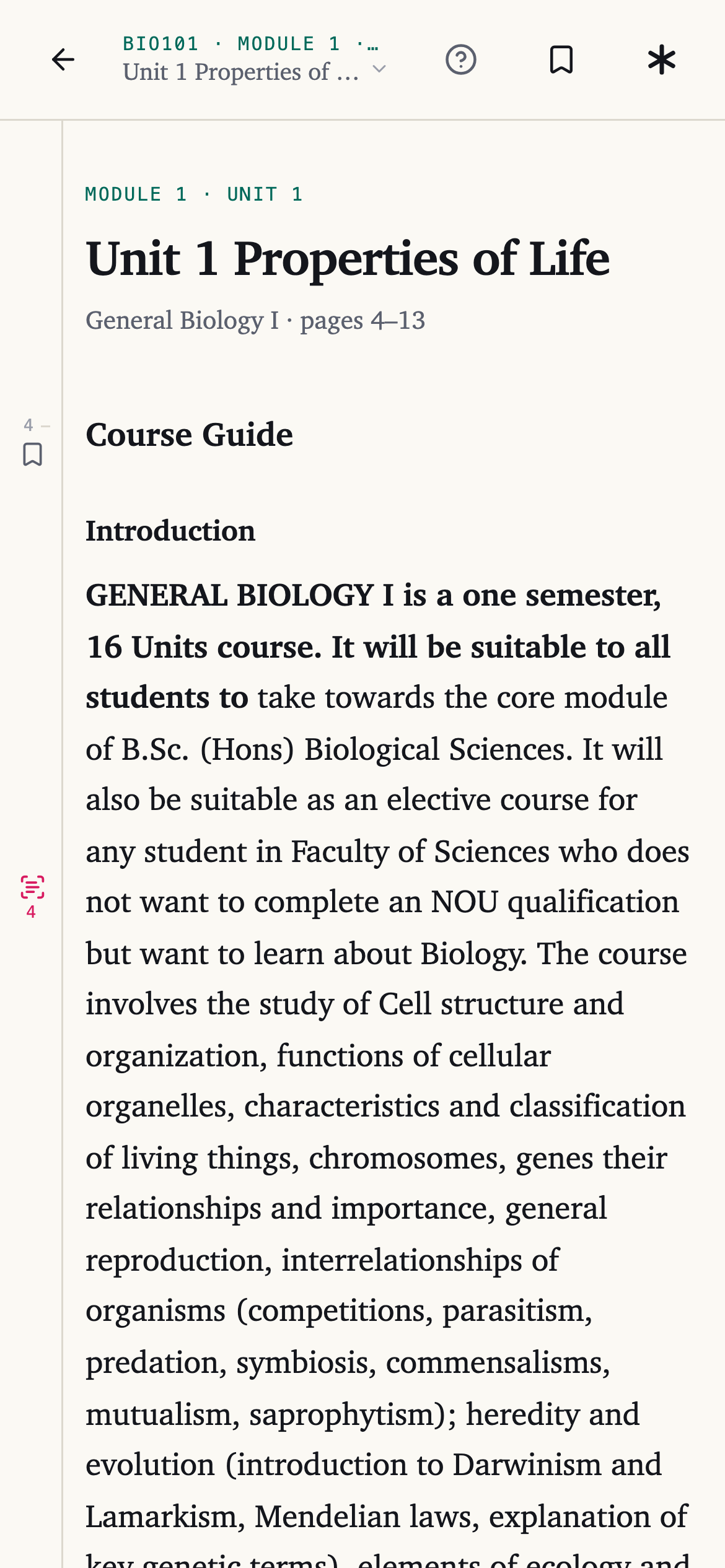
The bar at the top
Four things, left to right:
- ← back to the course.
- The unit name, with a small arrow. Tap it for the list of units and jump to any of them.
- A bookmark — everything you have marked in this course.
- ✳ — ask a question about what you are reading.
Under the unit name you get the module, the unit number, and which pages of the book you are on.
Moving through it
Scroll, and the next unit follows on. In the unit list, ones you have finished are marked Read and the one you are on says Here.
Reading is free
Reading costs nothing, on every plan including the free one. No meter runs while you read and there is no limit on how much you get through.
Credits are only for things the AI makes for you. See What a study credit is.
While you read
Select any text and a small bar appears with ✦ Highlight, Tag…, Ask and Share — see Highlight as you read.
Read anywhere
Your place is saved as you go, so you can start on your phone and carry on later on a laptop. See Where you left off.